Test a VS Code extension
VSCode is built on Electron and the Browser library. It contains every Electron and Browser keyword, downloads VS Code, and starts isolated VS Code instances with the extension under test. The workbench window is an ordinary Browser page.
Installation
Section titled “Installation”Like robotframework-electron, the library needs a Browser hook that is not released yet. Until it is, install it from the repository’s uv workspace, as described in the repository’s AGENTS.md:
uv syncNothing from npm is needed. VS Code itself is downloaded on first use.
First test
Section titled “First test”A test in an extension’s repository, run from the extension’s root folder (${EXECDIR}), with a workspace for the test in tests/workspace:
*** Settings ***Library    VSCode
*** Test Cases ***Extension Command Shows A Message    Open VS Code    ${EXECDIR}/tests/workspace    extension_development_path=${EXECDIR}    Keyboard Key    press    F1    Keyboard Input    type    Robot Test: Say Hello    Wait For Elements State    .quick-input-list .monaco-list-row[aria-label*="Robot Test: Say Hello"]    visible    Keyboard Key    press    Enter    Get Text    .notifications-toasts .notification-list-item-message    ==    Hello Robot    Close VS Code
The command palette filters asynchronously, so the test waits for the command’s row before pressing Enter.
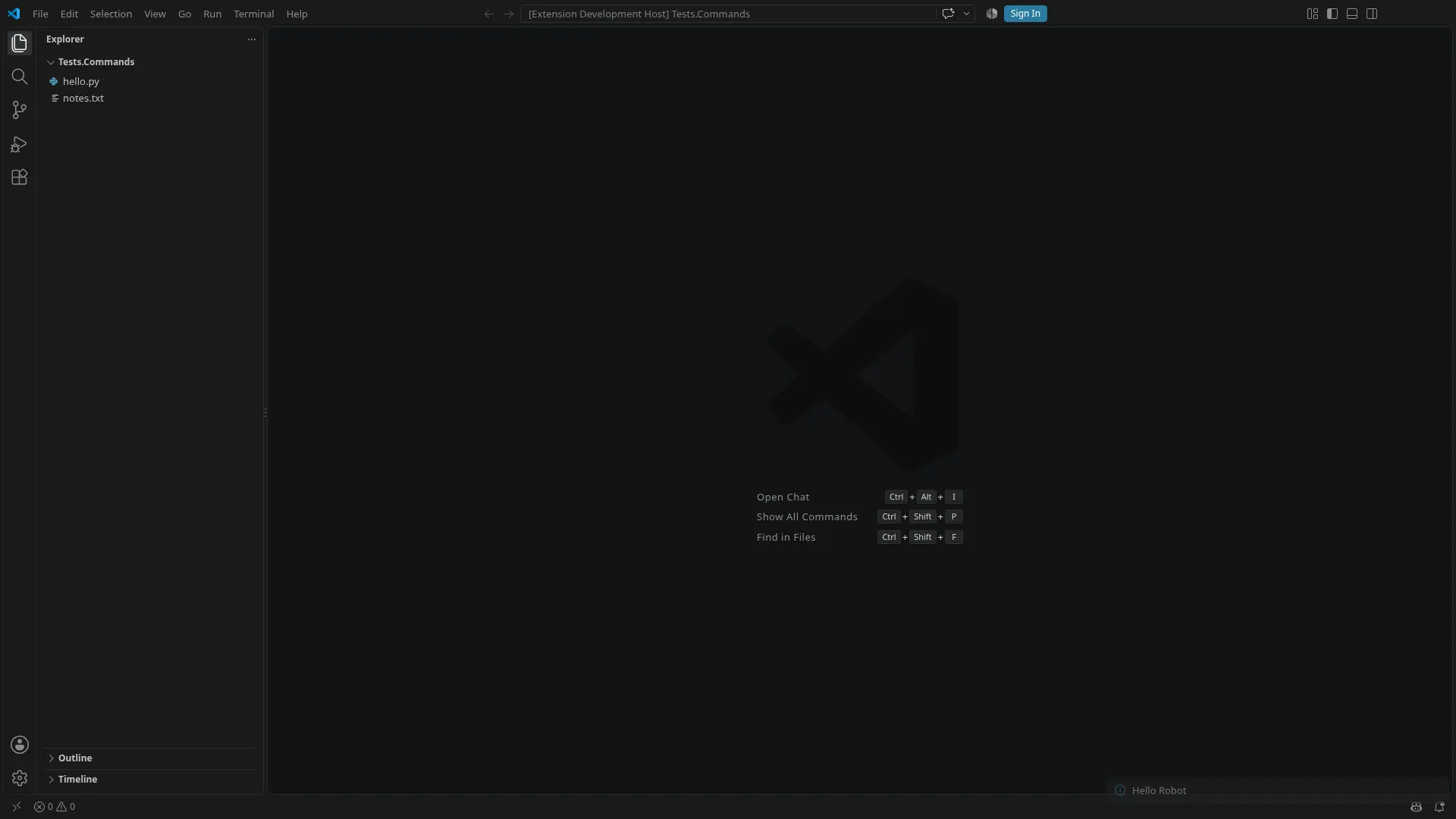
The example project in the repository goes further, with its own keywords for the command palette, quick picks, notifications, webviews, the editor and the terminal; see Writing your own workbench keywords.
Opening VS Code
Section titled “Opening VS Code”Open VS Code starts VS Code and returns once the workbench is ready. It returns the browser id, the context id and the page details of the workbench window, like New Electron Application.
- Which VS Code:
versionisstable(the default),insidersor a fixed version such as1.141.0. Alternatively,executablestarts an installed VS Code or a fork and downloads nothing. - Extensions:
extension_development_pathloads one or more extensions from source.extensionsinstalls Marketplace extensions or.vsixfiles into the instance before it starts.Install VS Code Extensioninstalls a Marketplace extension or a.vsixfile into the running instance. VS Code picks it up without a restart.
- Settings:
settingsare written to the instance’s user settings. The defaults switch off the welcome page, release notes, update checks, telemetry and workspace trust. They also switch off the screen reader mode, which VS Code otherwise turns on under Playwright, and hide the secondary side bar. Given settings override the defaults. - Isolation: every instance gets its own user-data and extensions directories under the output directory. Neither the user’s own VS Code nor other instances affect it.
VSCODE_*variables andELECTRON_RUN_AS_NODEare removed from its environment. - Closing:
Close VS Code,Close Browserand Browser’s automatic closing end the instance.
Next steps
Section titled “Next steps”- CI and the Linux display for running without a desktop.
- Downloads and cache for VS Code versions and offline runs.
- Logs and troubleshooting for VS Code’s logs and the instance directories.