Dependency extensions
Many extensions build on others, for example on the Python extension. The extension under test is loaded from source with extension_development_path. The extensions it depends on are installed into the isolated VS Code in one of two ways:
- When VS Code starts:
Open VS Codeinstalls the extensions inextensionsbefore it starts VS Code. An entry is a Marketplace identifier such asms-python.python, or the path of a.vsixfile. - Into the running VS Code:
Install VS Code Extensioninstalls an extension while VS Code runs, for example to test how your extension reacts when another one arrives. VS Code picks it up without a restart.
Both install into the instance’s own extensions directory, with VS Code’s command-line script, so neither your own VS Code nor other instances get the extension. Extensions that the installed extension declares as dependencies come along: ms-python.python brings Pylance, Python Environments and the Python Debugger. Forks of VS Code install from their own gallery; VSCodium, for example, uses Open VSX.
The example
Section titled “The example”The example’s python.robot runs the workspace’s hello.py with the run button that the Python extension shows above a Python file, once with the extension installed when VS Code starts and once installed into the running VS Code:
*** Settings ***Documentation       Runs a Python script with the Python extension, an extension that the extension...                 under test depends on: once installed when VS Code starts, once into the running VS Code.......                 The tests need network access for the Marketplace and a Python interpreter on the PATH....                 Leave them out with `--exclude network`.
Resource            resources/vscode.resourceResource            resources/editor.resourceResource            resources/python.resourceResource            resources/terminal.resource
Test Tags           networkTest Teardown       Close VS Code

*** Test Cases ***Installed At The Start    Open Example VS Code    extensions=${{ ["ms-python.python"] }}    Run Hello World    Take Screenshot    filename=python-run
Installed While Running    Open Example VS Code    Install VS Code Extension    ms-python.python    Run Hello World

*** Keywords ***Run Hello World    Open File    hello.py    Run Python File    Terminal Should Show    Hello World
Run Python File comes from a resource of its own, which the example’s video test uses as well:
*** Settings ***Documentation       Runs Python files with the Python extension.
Library             VSCode

*** Variables ***# The interpreter in the status bar, which the Python extension shows once it has chosen one.${PYTHON_INTERPRETER}           [id="ms-python.vscode-python-envs.python.interpreterDisplay"]# The run button that the Python extension shows above a Python file in the editor.${RUN_PYTHON_FILE_BUTTON}       .editor-group-container.active .editor-actions [aria-label="Run Python File"]

*** Keywords ***Run Python File    [Documentation]    Runs the Python file in the active editor with the run button above the editor.    ...    ...    The keyword waits until the Python extension has chosen an interpreter, and then    ...    until VS Code has stopped redrawing the run button, which it does several times    ...    while the extension starts. Run earlier, the extension reports an invalid    ...    interpreter, and a click on a button that is just being replaced can fail.    Wait For Elements State    ${PYTHON_INTERPRETER}    visible    timeout=60s    Wait Until Run Button Is Settled    Click    ${RUN_PYTHON_FILE_BUTTON}
Wait Until Run Button Is Settled    [Documentation]    Waits until the run button has stayed the same element for two seconds.    VAR    ${settled}    ...    () => {    ...    const button = document.querySelector('${RUN_PYTHON_FILE_BUTTON}');    ...    const state = window.robotRunButton ??= { element: null, since: 0 };    ...    if (button !== state.element) { state.element = button; state.since = Date.now(); }    ...    return button !== null && Date.now() - state.since >= 2000;    ...    }    ...    separator=\n    Wait For Function    ${settled}    timeout=60s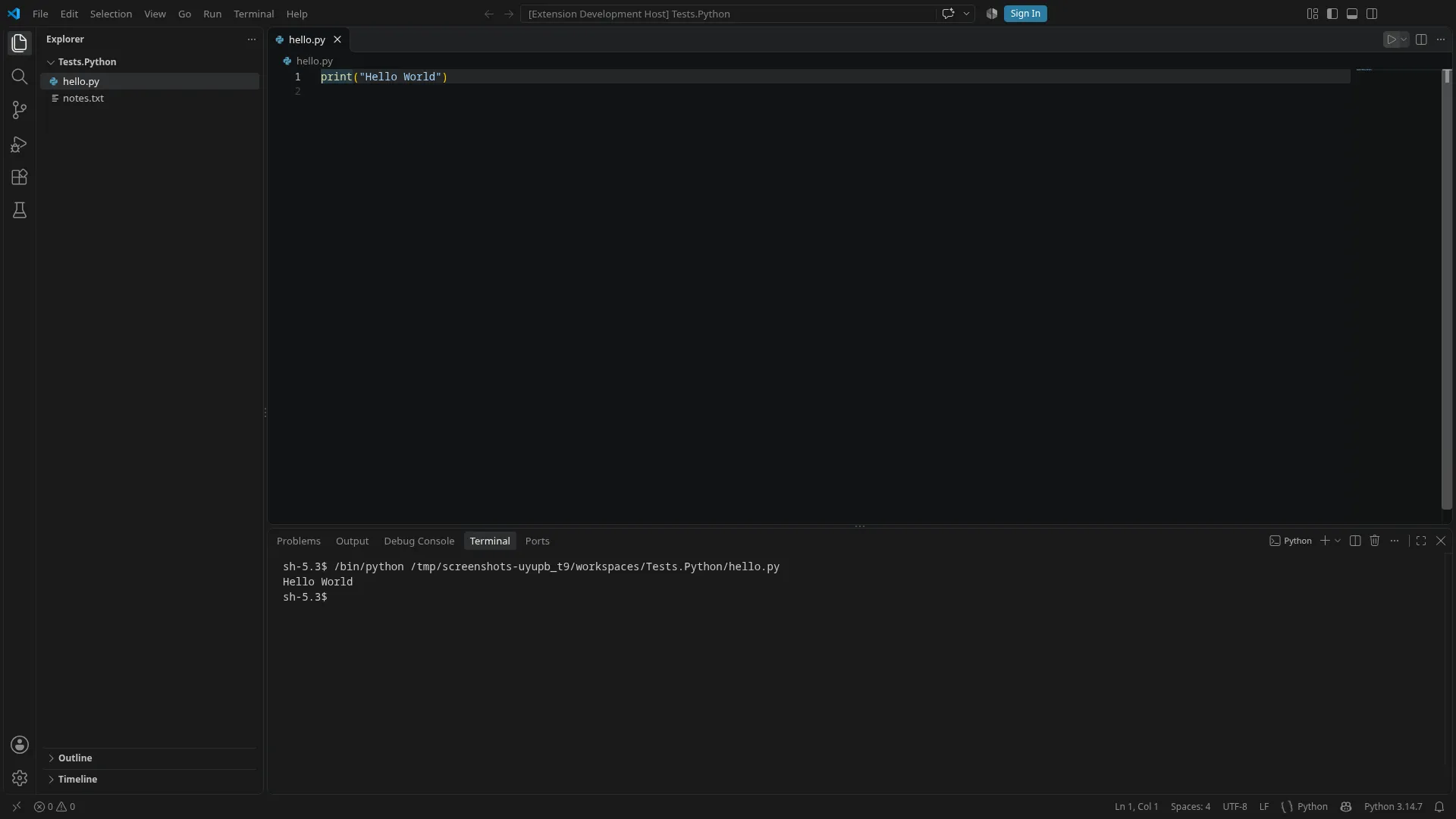
Things to know
Section titled “Things to know”- Wait until the extension is ready. An extension needs a moment to start. Run too early, the Python extension reported an invalid interpreter or failed with “Unable to find workspace for given file”, and did not run the file.
Run Python Filetherefore waits until the extension shows the chosen interpreter in the status bar, and then until VS Code has stopped redrawing the run button, which it does several times while the extension starts. Look for such signs of readiness in the extensions you depend on. - Commands appear a little later. After
Install VS Code Extension, the new extension’s commands are registered shortly after the install, and a command palette that is already open does not show them. The example’sRun Commandopens a fresh palette until the command is there, see Writing your own workbench keywords. - Network and time. Marketplace extensions are downloaded for every VS Code instance; the Python extension with its dependencies is about 100 MB. The example’s Python tests are tagged
network, so-e networkleaves them out where there is no network access. - Interpreters and tools. The Python extension runs the scripts with an interpreter it finds on the machine. Extensions that need tools, such as a language runtime, need them on the machines where the tests run, including CI.