Extensions
Every VS Code that Start VS Code starts has its own extensions directory, unless extensions_dir gives a prepared one. Neither your own VS Code nor other instances see what is in it. Extensions get into it in several ways. The libraries do not install extensions themselves; they provide the building blocks, and this page shows how to combine them:
extension_development_pathandextensions_dirofStart VS Code;Execute VS Code CLI Command, which runs VS Code’s command-line script.
Execute VS Code CLI Command never works on your own VS Code. Without executable, it works on the directories of the active instance. With executable, it works on the directories that Start VS Code would get with the same arguments: the given ones, and fresh ones for the others. This holds as well when the tests run in VS Code’s terminal or test explorer.
From source
Section titled “From source”The extension under test is loaded from its folder, without being installed. Several folders are possible as well:
Start VS Code ${VSCODE_EXECUTABLE} ${EXECDIR}/tests/workspace extension_development_path=${EXECDIR}Before VS Code starts
Section titled “Before VS Code starts”Execute VS Code CLI Command with executable installs Marketplace extensions or .vsix files into a directory of their own, and Start VS Code starts with a copy of it through extensions_dir:
Execute VS Code CLI Command --install-extension ms-python.python... executable=${VSCODE_EXECUTABLE} extensions_dir=${CACHE}/extensions user_data_dir=${CACHE}/user-dataCopy Directory ${CACHE}/extensions ${OUTPUT_DIR}/extensions/${TEST NAME}Start VS Code ${VSCODE_EXECUTABLE} extensions_dir=${OUTPUT_DIR}/extensions/${TEST NAME}- Faster and offline: if
${CACHE}is a folder that later runs keep, the extensions are downloaded only once. A second--install-extensionof an installed extension does nothing. With a folder under${OUTPUT_DIR}instead, every run downloads them again. - Dependencies come along. Extensions that an installed extension declares as dependencies are installed too:
ms-python.pythonbrings Pylance, Python Environments and the Python Debugger. - Fixed versions:
publisher.name@1.2.3installs a fixed version instead of the newest one. - Pre-releases: add
--pre-release. - Forks of VS Code install from their own gallery when
Execute VS Code CLI Commandgets the fork’sexecutable; VSCodium, for example, uses Open VSX. - Same VS Code version: prepare with the VS Code that starts the copy. Extensions declare which VS Code versions they support. The example keeps a folder per VS Code version, which
--versionreports. - A copy for each instance: VS Code writes into its extensions directory while it runs. Instances that share one directory can corrupt it.
Into the running VS Code
Section titled “Into the running VS Code”Installing while VS Code runs is useful to test how your extension reacts when another one arrives. Without executable, Execute VS Code CLI Command installs into the directories of the active instance:
Execute VS Code CLI Command --install-extension ms-python.pythonWhen the script returns, the extension is on disk, but VS Code has not necessarily taken it in yet. Its extension host knows: once vscode.extensions.getExtension finds the extension there, the window has it. Evaluate In Extension Host asks it, with the library’s helper extension, which the example loads next to its own extension. Wait Until Keyword Succeeds repeats the question:
${known} = Evaluate In Extension Host (vscode, id) => vscode.extensions.getExtension(id) !== undefined... arg=ms-python.pythonTwo things can go wrong:
- VS Code misses the install, or deletes the extension again. VS Code’s shared process keeps track of the installed extensions. When it starts, it reads the list of extensions, begins to watch it, and deletes extension folders that are not in the list. The workbench can show before that is over.
- An extension installed in that moment does not reach the window. It may even be deleted again, while the shared process log still says “Extensions added from another source”.
- On a loaded machine, this happened to about one in five installs right after
Start VS Code. - Wait for the extension host before the install, with
Evaluate In Extension Host () => true. It comes up later, and in our measurements no install failed after it. - If the extension host does not know the extension after the install, install it again and reload the window, so that VS Code reads its extensions anew. Uninstall it before; the uninstall fails when VS Code has deleted the extension, which does not matter.
- The script fails on a busy file. The running VS Code writes the list of extensions,
extensions.json, at the same time, and the script fails with “Unable to write file ‘…/extensions.json’”. Trying again helps.
The example’s keyword Install Into Running VS Code does all of this, see the example. Without it, such tests pass on a fast machine and fail on a loaded CI runner.
Listing, uninstalling and updating
Section titled “Listing, uninstalling and updating”The same keyword lists, uninstalls and updates the extensions of the active instance, or, with executable and the directories, of a prepared directory:
${list} = Execute VS Code CLI Command --list-extensions --show-versionsExecute VS Code CLI Command --uninstall-extension ms-python.pythonExecute VS Code CLI Command --update-extensionsA running VS Code notices an uninstalled extension the same way as an installed one, with “Extensions removed from another source” in its shared process log. code --help lists all arguments of the command line.
Switching extensions off
Section titled “Switching extensions off”Command-line arguments of VS Code switch extensions off for one instance. This also works for VS Code’s built-in extensions:
Start VS Code ${VSCODE_EXECUTABLE} args=${{ ["--disable-extension", "vscode.git"] }}Start VS Code ${VSCODE_EXECUTABLE} args=${{ ["--disable-extensions"] }}--disable-extensions switches off all installed extensions. Extensions loaded with extension_development_path still run.
Workspace recommendations
Section titled “Workspace recommendations”The recommendations in a workspace’s .vscode/extensions.json are only suggestions. VS Code does not install them. To test with them, read them and pass them on:
${json} = Get File ${EXECDIR}/tests/workspace/.vscode/extensions.json${recommended} = Evaluate json.loads($json)["recommendations"] modules=jsonVAR @{install}FOR ${extension} IN @{recommended} VAR @{install} @{install} --install-extension ${extension}ENDExecute VS Code CLI Command @{install}... executable=${VSCODE_EXECUTABLE} extensions_dir=${CACHE}/extensions user_data_dir=${CACHE}/user-dataVS Code allows comments in this file, which json.loads does not accept.
Profiles
Section titled “Profiles”VS Code profiles bundle settings and extensions. args=${{ ["--profile", "Testing"] }} opens an instance with a profile of that name, created empty if it does not exist. The command line installs into a profile with --profile only once the profile exists, and each instance starts with a fresh user-data directory without profiles, unless user_data_dir gives a prepared one. For tests, settings and the ways above are simpler.
The example
Section titled “The example”The example project’s python.robot runs the workspace’s hello.py with the run button that the Python extension shows above a Python file. It does so twice: with the extension prepared once and copied into VS Code before it starts, and installed into the running VS Code:
*** Settings ***Documentation       Runs a Python script with the Python extension, an extension that the extension...                 under test depends on: prepared once and copied into VS Code before it starts, and...                 installed into the running VS Code.......                 The tests need network access for the Marketplace and a Python interpreter on the PATH....                 Leave them out with `--exclude network`.
Resource            resources/vscode.resourceResource            resources/editor.resourceResource            resources/extensions.resourceResource            resources/python.resourceResource            resources/terminal.resource
Test Tags           networkTest Teardown       Close VS Code

*** Test Cases ***Prepared Before The Start    ${extensions} =    Prepared Extensions    ms-python.python    Start Example VS Code    extensions_dir=${extensions}    Run Hello World    Take Screenshot    filename=python-run
Installed While Running    Start Example VS Code    Install Into Running VS Code    ms-python.python    Run Hello World

*** Keywords ***Run Hello World    Open File    hello.py    Run Python File    Terminal Should Show    Hello World
The keywords for the prepared copy and for the running VS Code are in a resource of their own:
*** Settings ***Documentation       Gets extensions into VS Code with VS Code's command-line script: prepared once and...                 copied into each VS Code, or installed into the running VS Code.
Library             OperatingSystemLibrary             VSCode

*** Variables ***# Where extensions are prepared once and kept for later runs, in a folder per VS Code version.${PREPARED_EXTENSIONS}      ${EXECDIR}/.cache/extensions

*** Keywords ***Prepared Extensions    [Documentation]    Returns a fresh copy of the prepared extensions directory for one VS Code.    ...    ...    The extensions are installed on first use into a folder of `${PREPARED_EXTENSIONS}`    ...    for the version of the VS Code that the tests run against. Later calls, also in    ...    later runs, find them there and download nothing. Each VS Code gets its own copy, because VS Code    ...    writes into its extensions directory while it runs.    [Arguments]    @{extensions}    ${version} =    VS Code Version    VAR    ${prepared}    ${PREPARED_EXTENSIONS}/${version}    VAR    @{install}    FOR    ${extension}    IN    @{extensions}        VAR    @{install}    @{install}    --install-extension    ${extension}    END    Execute VS Code CLI Command    @{install}    ...    executable=${VSCODE_EXECUTABLE}    extensions_dir=${prepared}/extensions    user_data_dir=${prepared}/user-data    VAR    ${copy}    ${OUTPUT_DIR}/extensions/${TEST NAME}    Remove Directory    ${copy}    recursive=True    Copy Directory    ${prepared}/extensions    ${copy}    RETURN    ${copy}
VS Code Version    [Documentation]    Returns the version of the VS Code that the tests run against, such as 1.141.0.    ${output} =    Execute VS Code CLI Command    --version    executable=${VSCODE_EXECUTABLE}    RETURN    ${output.splitlines()}[0]
Install Into Running VS Code    [Documentation]    Installs an extension into the active VS Code and waits until VS Code has taken it in.    ...    ...    VS Code's command-line script installs into the directories of the running    ...    VS Code. While VS Code's shared process is still starting, it misses an    ...    extension that arrives, or even deletes it again, and the workbench can show    ...    before that is over. So the keyword waits for the extension host first, which    ...    comes up later. Then it waits until the extension host knows the extension:    ...    that is what the window has taken in. If it does not, the keyword installs the    ...    extension again and reloads the window, so that VS Code reads its extensions    ...    anew. The script can also fail once because VS Code writes the list of    ...    extensions at the same time, so the first install is tried twice.    ...    ...    `extension` is a Marketplace id or a `.vsix` file; for a `.vsix` file, give its    ...    id as `id`.    [Arguments]    ${extension}    ${id}=${extension}    Evaluate In Extension Host    () => true    Wait Until Keyword Succeeds    2x    1s    Execute VS Code CLI Command    --install-extension    ${extension}    ${known} =    Run Keyword And Return Status    Wait Until Keyword Succeeds    10s    0.2s    ...    Extension Host Should Know    ${id}    IF    not ${known}        Run Keyword And Ignore Error    Execute VS Code CLI Command    --uninstall-extension    ${id}        Execute VS Code CLI Command    --install-extension    ${extension}        Evaluate In Extension Host        ...    (vscode) => { void vscode.commands.executeCommand('workbench.action.reloadWindow'); }        Wait Until Keyword Succeeds    30s    0.5s    Extension Host Should Know    ${id}    END
Extension Host Should Know    [Documentation]    Fails unless the extension host of the active window knows the extension with the given id.    [Arguments]    ${id}    ${known} =    Evaluate In Extension Host    (vscode, id) => vscode.extensions.getExtension(id) !== undefined    ...    arg=${id}    Should Be True    ${known}    The extension host does not know ${id}.
Run Python File comes from a resource that the example’s video test uses as well:
*** Settings ***Documentation       Runs Python files with the Python extension.
Library             VSCode

*** Variables ***# The interpreter in the status bar, which the Python extension shows once it has chosen one.${PYTHON_INTERPRETER}           [id="ms-python.vscode-python-envs.python.interpreterDisplay"]# The run button that the Python extension shows above a Python file in the editor.${RUN_PYTHON_FILE_BUTTON}       .editor-group-container.active .editor-actions [aria-label="Run Python File"]

*** Keywords ***Run Python File    [Documentation]    Runs the Python file in the active editor with the run button above the editor.    ...    ...    The keyword waits until the Python extension has chosen an interpreter, and then    ...    until VS Code has stopped redrawing the run button, which it does several times    ...    while the extension starts. Run earlier, the extension reports an invalid    ...    interpreter, and a click on a button that is just being replaced can fail.    Wait For Elements State    ${PYTHON_INTERPRETER}    visible    timeout=60s    Wait Until Run Button Is Settled    Click    ${RUN_PYTHON_FILE_BUTTON}
Wait Until Run Button Is Settled    [Documentation]    Waits until the run button has stayed the same element for two seconds.    VAR    ${settled}    ...    () => {    ...    const button = document.querySelector('${RUN_PYTHON_FILE_BUTTON}');    ...    const state = window.robotRunButton ??= { element: null, since: 0 };    ...    if (button !== state.element) { state.element = button; state.since = Date.now(); }    ...    return button !== null && Date.now() - state.since >= 2000;    ...    }    ...    separator=\n    Wait For Function    ${settled}    timeout=60s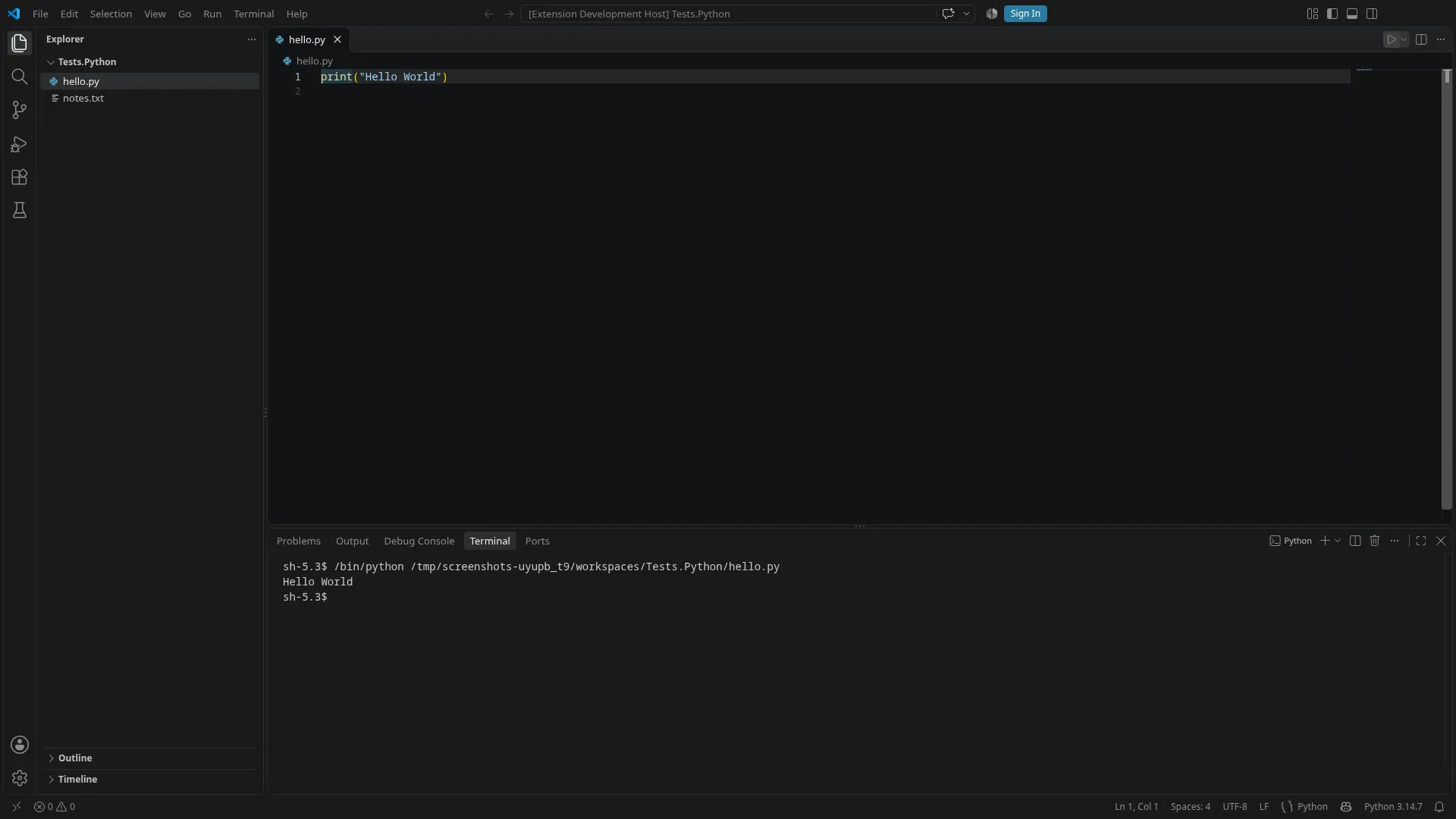
Things to know
Section titled “Things to know”- Wait until the extension is ready. An extension needs a moment to start.
- Run too early, the Python extension reported an invalid interpreter or failed with “Unable to find workspace for given file”, and did not run the file.
Run Python Filetherefore waits until the extension shows the chosen interpreter in the status bar. It then waits until VS Code has stopped redrawing the run button, which it does several times while the extension starts.- Look for such signs of readiness in the extensions you depend on.
- Commands appear in a fresh palette. A command palette that is already open does not show the commands of an extension that arrived later. The example’s
Run Commandopens a fresh palette until the command is there, see Writing your own workbench keywords. - Network and time. The Python extension with its dependencies is about 100 MB. Prepared in a folder that later runs keep, it is downloaded once; installed into the running VS Code, for every instance. The example’s Python tests are tagged
network, so-e networkleaves them out where there is no network access. - Interpreters and tools. The Python extension runs the scripts with an interpreter it finds on the machine. Extensions that need tools, such as a language runtime, need them on the machines where the tests run, including CI.