Test a VS Code extension
VSCode is built on Electron and the Browser library. It contains every Electron and Browser keyword and starts isolated VS Code instances with the extension under test. The workbench window is an ordinary Browser page.
Everything in the Electron section applies to VS Code as well: Browser keywords in applications, traces and HAR files, videos, and Evaluate In Main Process for the main process. The pages of this section add what is specific to VS Code.
Installation
Section titled “Installation”robotframework-vscode needs Python 3.11 or later. It brings robotframework-electron and the Browser library, 21.0.0 or later, and with it Robot Framework, 7.1.1 or later.
With Node.js, rfbrowser init completes the installation of the Browser library:
pip install robotframework-vscoderfbrowser init --skip-browsersWithout Node.js, Browser’s BrowserBatteries take its place:
pip install robotframework-vscode "robotframework-browser[bb]"VS Code brings its own Electron, so this is all that testing an extension needs. Two things need more:
| For | With Node.js | Without Node.js |
|---|---|---|
| Recording videos | rfbrowser init chromium-headless-shell |
rfbrowser install --only-shell chromium |
| A visible web browser beside VS Code | rfbrowser init chromium |
rfbrowser install chromium |
VS Code
Section titled “VS Code”The library starts a VS Code that you provide: an installed VS Code, a portable copy, a fork, or a build that @vscode/test-electron downloads. It downloads nothing itself. For a fixed version, add @vscode/test-electron to the development dependencies of your extension, with Node.js 22 or later, and download VS Code once:
npm install --save-dev @vscode/test-electronnode -e "require('@vscode/test-electron').downloadAndUnzipVSCode('1.141.0').then(console.log)"VS Code goes into .vscode-test, a folder for git to ignore, and the command prints the executable’s path, on Linux .vscode-test/vscode-linux-x64-1.141.0/code. A variable in robot.toml keeps the path out of the tests:
[variables]VSCODE_EXECUTABLE = ".vscode-test/vscode-linux-x64-1.141.0/code"A profile can point the variable to another VS Code, see VS Code versions and profiles.
First test
Section titled “First test”A test in an extension’s repository, run from the extension’s root folder (${EXECDIR}), with a workspace for the test in tests/workspace:
*** Settings ***Library    VSCode
*** Test Cases ***Extension Command Shows A Message    Start VS Code    ${VSCODE_EXECUTABLE}    ${EXECDIR}/tests/workspace    extension_development_path=${EXECDIR}    Keyboard Key    press    F1    Keyboard Input    type    Robot Test: Say Hello    Wait For Elements State    .quick-input-list .monaco-list-row[aria-label*="Robot Test: Say Hello"]    visible    Keyboard Key    press    Enter    Get Text    .notifications-toasts .notification-list-item-message    ==    Hello Robot    Close VS Code
The command palette filters asynchronously, so the test waits for the command’s row before pressing Enter.
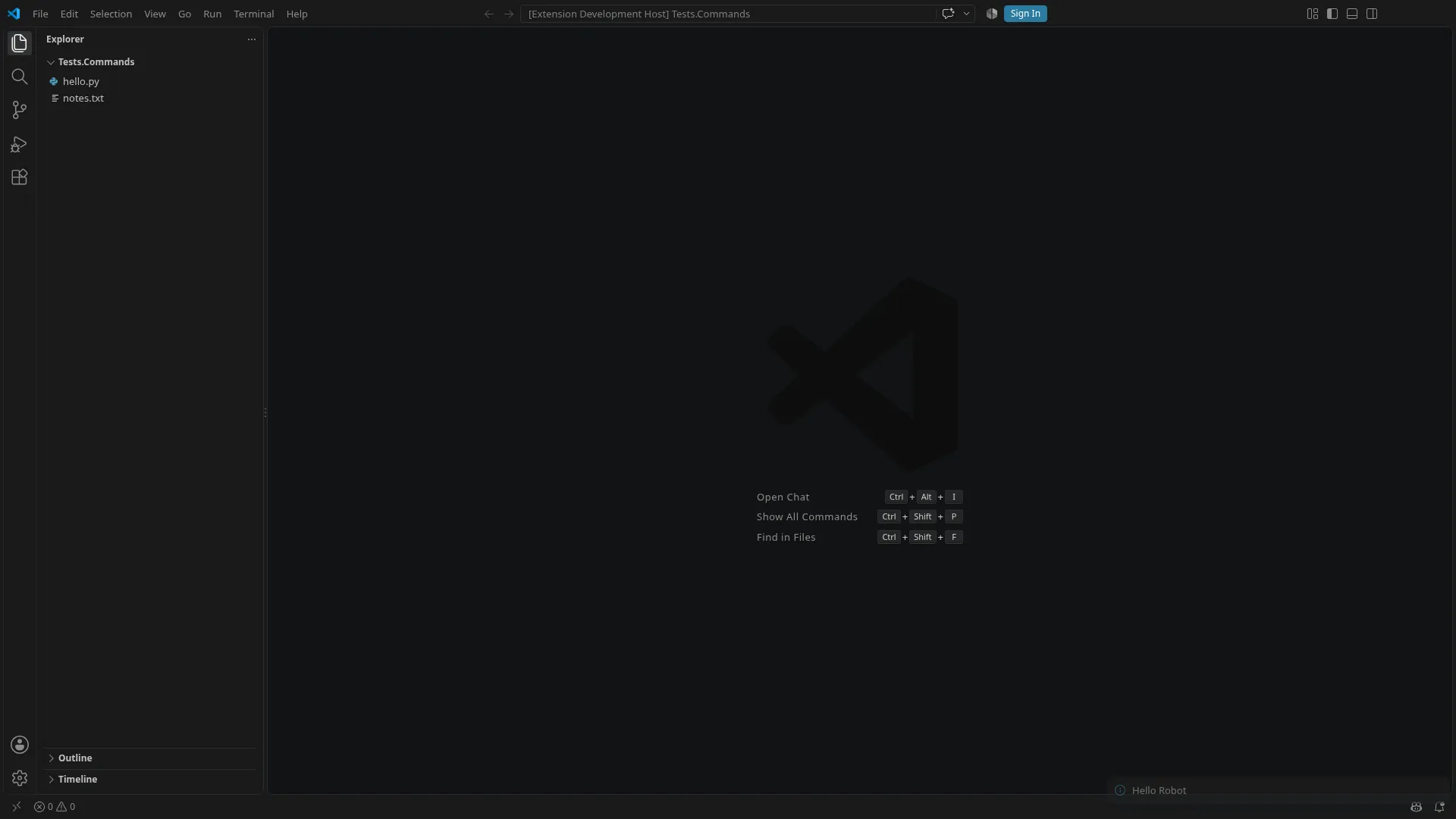
The example project in the repository goes further, with its own keywords for the command palette, quick picks, notifications, webviews, the editor and the terminal; see Writing your own workbench keywords.
Starting VS Code
Section titled “Starting VS Code”Start VS Code starts the VS Code of the given executable and returns once the workbench is ready. It returns the instance’s id and the page details of the workbench window, like Start Electron Application.
- Which VS Code: the executable, as a path or as a command on
PATH. Symbolic links are followed. - Extensions:
extension_development_pathloads one or more extensions from source.extensions_dirstarts the instance with a prepared extensions directory, for example one thatExecute VS Code CLI Commandfilled with Marketplace extensions or.vsixfiles.- Extensions shows these and other ways, such as installing into the running instance.
- Settings:
settingsare written to the user settings of the instance’s own user-data directory. The defaults switch off the welcome page, release notes, update checks, telemetry and workspace trust. They also switch off the screen reader mode, which VS Code otherwise turns on under Playwright, and hide the secondary side bar. Given settings override the defaults. - Isolation: every instance gets its own user-data and extensions directories under the output directory. Neither the user’s own VS Code nor other instances affect it.
user_data_dirandextensions_dirgive prepared directories instead, which the instance uses as they are. The library writes no settings into a given user-data directory, andsettingscannot be combined with it: put the settings that the tests need, at least"editor.accessibilitySupport": "off", into itsUser/settings.json. Tests that run in VS Code’s terminal or test explorer start an instance that the surrounding VS Code does not affect. - Closing:
Close VS Codeand Browser’s automatic closing end the instance.
Next steps
Section titled “Next steps”- Extensions for getting the extensions that your tests need into VS Code.
- The extension host for VS Code’s extension API in a test, for example to run a command by its id or to wait for a language server.
- Browser keywords in VS Code for the Browser features that need a setting in VS Code.
- Videos and traces of VS Code for videos in which VS Code fills the frame.
- CI and the Linux display for running without a desktop.
- VS Code versions and profiles for running the tests against several VS Code builds.
- Instances, logs and troubleshooting for VS Code’s logs, the instance directories and the cleanup of earlier runs.
- Keyword reference for every keyword of the library, including those that come from
Electronand the Browser library.